

Make your website stand out with a custom scrollbar 🌟
The scrollbar is easily one of the most neglected UI components out there that are not leveraged by many websites to enhance their users’ experience. By default, on all HTML, when the content of the website exceeds the viewport height, a scrollbar will automatically appear on the right, just like the one you’re seeing as you read this article now.
The default scrollbar looks decent, but it can be better. Let’s take a reference from the experts. Here’s an example of a unique scrollbar found on CSSTricks.com. Put your eyes to the right of the GIF! 👀

This scrollbar fits in with the dark theme of the website much more than the default scrollbar. It also has a little bevel feel to it.
How to re-create the CSS Tricks Scrollbar
As I’ve taught my previous readers before, you can navigate the frontend simply by using the Browser Inspector. So let’s do that!
Here are the steps for inspecting the scrollbar:
- Inspect the
<html />element directly. This is because there’s no<scrollbar />tag. The scrollbar is not a specific HTML element. - To find how the scrollbar is styled, filter for ‘scrollbar’ in the styles tab.
- You will see a few pseudo-elements that are used to style the scrollbar.
Here’s a preview of how your inspector will look like.

In the style tab, these are the relevant rules that you can find for styling the scrollbar.
html::-webkit-scrollbar {
    width: 16px;
    height: 16px;
}

html::-webkit-scrollbar-thumb {
    background: #434343;
    border-radius: 16px;
    box-shadow: inset 2px 2px 2px hsla(0,0%,100%,.25),inset -2px -2px 2px rgba(0,0,0,.25);
}

html::-webkit-scrollbar-track {
    background: linear-gradient(90deg,#434343,#434343 1px,#111 0,#111);
}
If I simply copy these styles over and use it for a very long HTML page, the scrollbar will look as it is in CSSTricks!
Well, almost. If you open that pen in Firefox, you’ll only see the default scrollbar. These ::-webkit-scrollbar rules work in Chrome, Edge and Safari, but Firefox never supported them. To give Firefox visitors something close, add the standard scrollbar-color and scrollbar-width properties, but only for browsers without ::-webkit-scrollbar (I’ll explain why in the next section):
/* Firefox, and any browser without ::-webkit-scrollbar */
@supports not selector(::-webkit-scrollbar) {
    html {
        scrollbar-color: #434343 #111; /* thumb, then track */
        scrollbar-width: thin;
    }
}
Now that we know the pseudo-elements do work, let’s understand how they work.
How to style a scrollbar
There are two ways to style a scrollbar today:
- the standard properties,
scrollbar-colorandscrollbar-width, which work in every modern browser but only let you set two colors and a size - the
::-webkit-scrollbarpseudo-elements that the CSS Tricks scrollbar uses, which give you much more control but don’t work in Firefox
The standard way: scrollbar-color and scrollbar-width
html {
    scrollbar-color: #3B82F6 #A1A1AA; /* thumb color, then track color */
    scrollbar-width: thin;            /* auto | thin | none */
}
That’s all there is to it. These two properties are supported in Chrome and Edge 121, Firefox 64 and Safari 26.2, and MDN has listed them as Baseline since December 2025. One caveat: there are reports of scrollbar-color having no effect in Safari 26.3 on older macOS versions, so check it on the devices you care about 🧐
They also respect user settings: in high-contrast mode, scrollbar-color falls back to auto, so people who need the system colors still get them.
The detailed way: ::-webkit-scrollbar pseudo-elements
For the CSS Tricks Scrollbar, there were 3 pseudo-elements used:
::-webkit-scrollbar::-webkit-scrollbar-thumb::-webkit-scrollbar-track
Here’s a simple diagram to depict those 3 parts of the scrollbar.

In addition to these 3 pseudo-elements, there are 4 other parts of the scrollbar that you can consider styling. According to MDN Web Docs , these are the 7 pseudo-elements that you can utilize to style your scrollbar.
::-webkit-scrollbar— the entire scrollbar.::-webkit-scrollbar-thumb— the draggable scrolling handle.::-webkit-scrollbar-track— the track (progress bar) of the scrollbar, where there is a gray bar on top of a white bar.::-webkit-scrollbar-button— the buttons on the scrollbar (arrows pointing upwards and downwards that scroll one line at a time).::-webkit-scrollbar-track-piece— the part of the track (progress bar) not covered by the handle.::-webkit-scrollbar-corner— the bottom corner of the scrollbar, where both horizontal and vertical scrollbars meet This is often the bottom-right corner of the browser window.::-webkit-resizer— the draggable resizing handle that appears at the bottom corner of some elements.
Some of these descriptions may be a little hard to visualize. So here’s a diagram to help you with that.

Using both: don’t let them meet on the same element
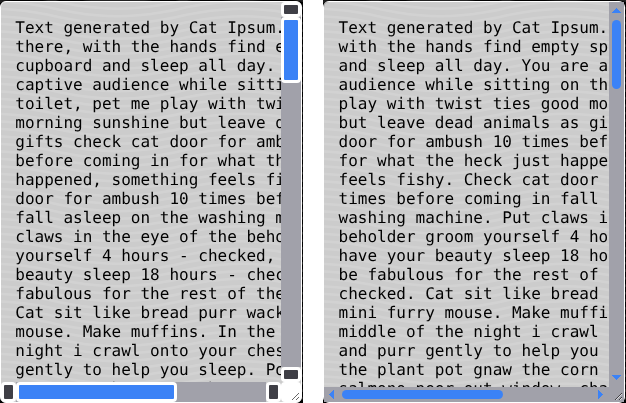
This part surprised a lot of people when Chrome 121 added the standard properties. According to MDN, browsers ignore the ::-webkit-scrollbar pseudo-elements on any element whose computed scrollbar-color is anything other than auto. And because scrollbar-color is inherited, setting it on html or body turns off the webkit styles for every scroll container on the page.
Here’s the same playground scrollbar in Chrome. On the left are the detailed ::-webkit-scrollbar styles. On the right, the same colors with scrollbar-color and scrollbar-width: auto applied.
So which one should you use?
- If two colors are enough, just use the standard properties.
- If you want the detailed look, use the
::-webkit-scrollbarpseudo-elements, and wrap the standard properties in@supports not selector(::-webkit-scrollbar)like in the CSS Tricks example above. That way Chrome, Edge and Safari keep the detailed styles, and Firefox still gets your colors.
For a gentle introduction to how some of these pseudo-elements can be used, I have created a scrollbar playground for you to create a simple custom scrollbar and export its CSS. Take some time to play around with the settings to deduce how the pseudo-elements work✨ In the Standard properties section, you can also pick a scrollbar-width and turn on Preview standard only to see what Firefox visitors will get. The exported CSS includes the @supports fallback for you.
Visit the playground in full page view here, otherwise you can try it in the iframe below!
💡 Important Tip in using Scrollbar Playground
Clicking the export to CSS button will copy the element’s styles to your clipboard. Afterwards, you can open up an empty codepen and just paste the styles directly to the CSS tab to see the magic. Remember to set the height of the body element to a very big value like
height: 3000px;so that there is content overflow for a scrollbar to appear.
Observations
1. Width of the scrollbar
When you change…
- Scrollbar Width -> the thickness of the vertical scrollbar changes.
- Scrollbar Height -> the thickness of the horizontal scrollbar changes.

The style is applied at the following pseudo-element selector.
#preview::-webkit-scrollbar {
    width: 16px;  /* thickness of the vertical scrollbar */
    height: 16px; /* thickness of the horizontal scrollbar */
}
With the standard properties, you can’t pick a pixel size. scrollbar-width only accepts auto, thin or none, and the browser decides what those look like.
If the scrollbar appearing makes your layout jump sideways, for example when content loads in later, add scrollbar-gutter: stable to the scrolling element. It reserves the space for the scrollbar even before the content overflows.
2. Scrollbar Buttons
In the playground, you can choose to hide or show them. If you show them, you can choose to show 1 or 2 buttons. Buttons can only be styled with ::-webkit-scrollbar-button; the standard properties have no equivalent.

Although it is much more common to see scrollbar with just the single arrow buttons on both ends of the scrollbar since that’s the native behavior, if you apply styles to just the ::--webkit-scrollbar-button element itself, you will see 2 buttons on each side.
This behavior may differ depending on the Chromium version of your browser, and also the element you apply the style to. For example, if you apply the same style on codepen, you don’t see the double button, but if you apply it to a simple html page and open it up on your local machine, you will see the double button, like what you see on the playground when you choose the 2 button option.
To enforce that the scrollbar only shows one button on each side, the following style needs to be applied.
::-webkit-scrollbar-button:vertical:start:increment,
::-webkit-scrollbar-button:vertical:end:decrement,
::-webkit-scrollbar-button:horizontal:start:increment,
::-webkit-scrollbar-button:horizontal:end:decrement {
    display: none;
}
3. Coloring parts of the scrollbar
Most of the scrollbar parts can be colored individually.

#preview::-webkit-scrollbar-thumb {
    background: var(--scrollbar-thumb-color, #3B82F6);
}

#preview::-webkit-scrollbar-track {
    background: var(--scrollbar-track-color, #A1A1AA);
}

#preview::-webkit-scrollbar-button {
    background: var(--scrollbar-button-color, #3F3F46);
}

#preview::-webkit-scrollbar-corner {
    background: var(--scrollbar-corner-color, #FFFFFF);
}
With the standard properties, only the thumb and the track can be colored:
#preview {
    scrollbar-color: var(--scrollbar-thumb-color, #3B82F6) var(--scrollbar-track-color, #A1A1AA);
}
Whichever way you choose, keep enough contrast between the thumb and the track. MDN recommends checking it, and WCAG suggests a ratio of at least 3:1. A pastel thumb on a pastel track can look nice and still be hard to find.
Exploring further
Now that you have some basics of setting css properties in terms of sizes and colors for the scrollbar pseudo-elements, consider special scrollbars like this too! ✨
Examples
Here’s a very simple example that I made which only has a horizontal scrollbar, but the thumb is an animating cat! 😸 The icon is taken from Gowee’s nyan cat SVG on Github.
Another note-worthy scrollbar to be mentioned is the scrollbar on Shawn’s portfolio. Eyes to the right 👀 It is a candy stick moving on a heart palette track and it feels super delightful to look at it! Literal eye candy😋

EDIT 2/2/22: A month after this article is published, the same Shawn replies on CSS Tricks that a custom scrollbar is one thing that people can do to make their websites better. Coincidence? I think not 😉
Resources
- The original Webkit’s article on styling scrollbars
- This article talks about even more selectors that you can utilize to style your scrollbar, although they are rarely used
- CSS Tricks’ article on styling scrollbars
- Great tons of modern looking examples here!
- MDN on
scrollbar-color- Includes how it interacts with
::-webkit-scrollbarand browser support
- Includes how it interacts with
- Chrome for Developers on scrollbar styling
- Covers the standard properties and a fallback pattern for older browsers
Libraries for adding a Custom Scrollbar
Of course, if you’re lazy and prefer a fast and pre-made solution, here are 3 public packages that I’ve found which you can choose to add into your project. The way they implemented them is different, so do check out their docs to see which you prefer.
- Smooth Scrollbar
- A simple customizable, performant Javascript plugin solution
- Overlay Scrollbars
- comes with themes and framework wrappers for Angular, React and Vue
- Perfect Scrollbar
- made by the Material Bootstrap team
Bonus: Hiding the scrollbar UI
Although this article is about making your website stand out with a custom scrollbar, if for any reason you hate having to see a scrollbar UI take up visual space on your website, or you want your website to be look alike on both desktop and mobile (websites do not show scrollbars by default on mobile browsers), you can now use the standard scrollbar-width: none, which works in every modern browser. Older versions of Chrome and Safari also need display: none on the ::-webkit-scrollbar pseudo-element.
html {
  scrollbar-width: none;
}

/* older Chrome and Safari */
html::-webkit-scrollbar {
  display: none;
}
You will still be able to scroll on a webpage, just that you can’t see the scrollbar UI. For most use cases, I do not recommend you to disable the scrolling entirely 😆
That’s a wrap folks! 🎉

Thank you for reading, hope you enjoyed the article! If you have tried out the Scrollbar Playground and created a scrollbar that you like, do share a screenshot below! 😊
If you find the article awesome, hit the reactions 🧡 and share it 🐦~
To stay updated whenever I post new stuff, follow me on Twitter.
